Feature
24 caption templates in 7 groups, driven by word-level transcript timing. Font size, width, colors, background, and position stay editable until export.
Animated captions timed to every word you said
Short clips are watched muted, so the text carries the message. Clyps builds captions from the same word-level timing the transcript already holds, which is what lets a treatment highlight the exact syllable being spoken instead of dropping a block of text a beat late.
Fast facts
- 24 caption templates across 7 groups: Essential, Social, Spoken, Editorial, Layout, Business, Brand.
- Word-level timing comes from transcription, not from a guess at reading speed.
- Six chunking presets decide how many words share the screen, from 3 to 10.
- Font size, caption width, colors, background, and position are direct controls.
- Captions render into the exported MP4 at 720p or 1080p.
Definition
What makes a caption animated rather than a static subtitle?
The difference is where the timing comes from. A static subtitle track holds a line on screen for a fixed span and moves to the next one. An animated treatment reacts to individual words, which is only possible when the transcript carries a timestamp for each word rather than for each line.
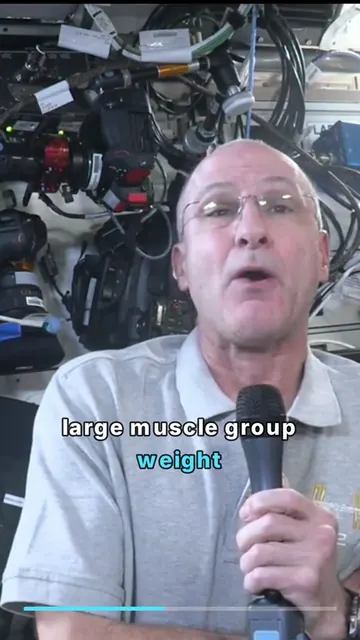
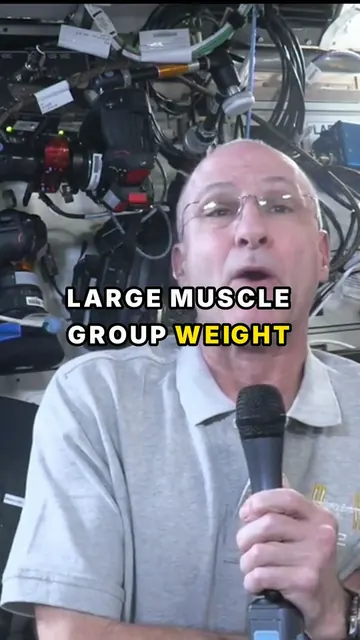
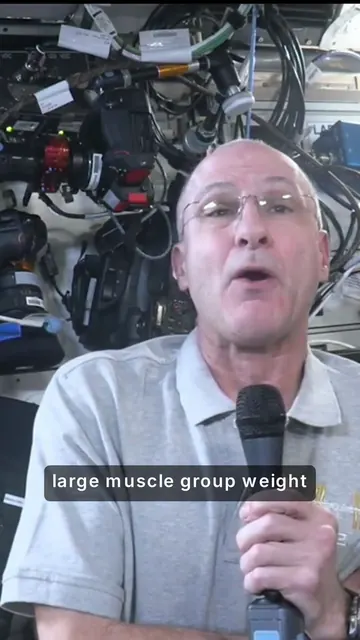
Clyps transcribes with word-level timing as part of processing, before you open the editor. That single fact is what every caption template in the product is built on. Karaoke marks the word being spoken as it lands, Karaoke Sweep fills continuously across each word, and Hook Punch fires words in three-word bursts. None of those are decorative effects layered on afterward; they read the same timing data the trim controls use.
It also explains why switching templates is cheap. Because the timing lives with the transcript rather than inside the template, moving from Minimal to Bold to Karaoke changes only the appearance. The words stay attached to the moments they were spoken, and the preview updates in the browser without a render.
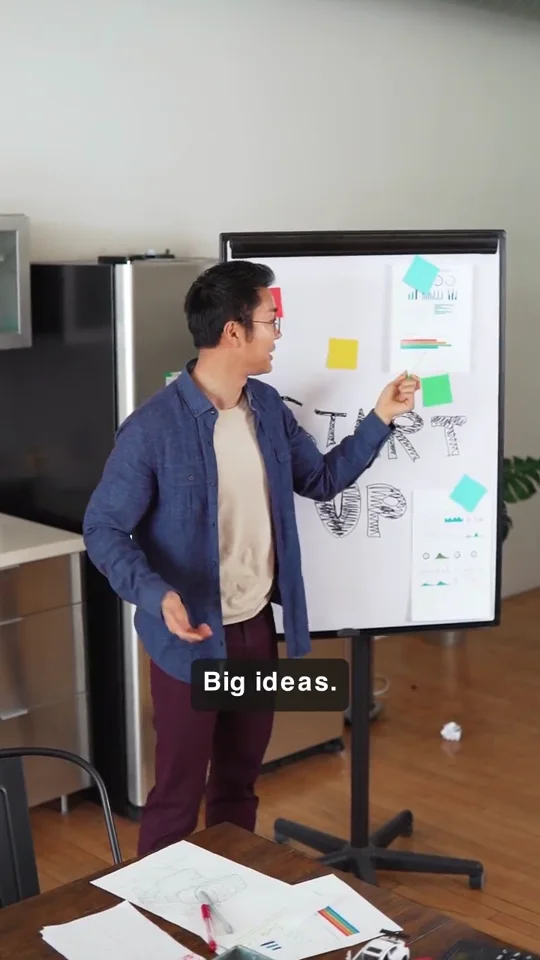
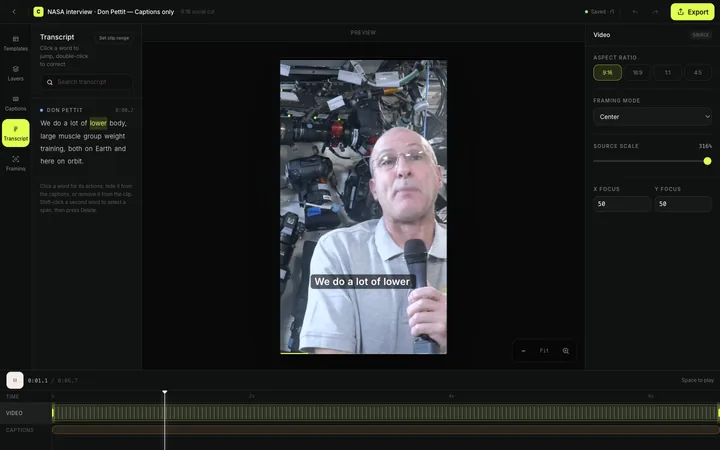
Three of the twenty-four treatments, rendered by the Clyps pipeline from public-domain source footage.
The catalog
Which caption template groups ship today?
Seven groups holding twenty-four templates. The groups exist to shorten the decision, not to be memorized: pick the group that matches the tone of the clip, then try two or three treatments inside it against the actual footage.
| Group | Count | Templates | What the group is for |
|---|---|---|---|
| Essential | 5 | Minimal, Bold, Karaoke, Subtitle Classic, Karaoke Sweep | Dependable defaults, including both word-highlight treatments. |
| Editorial | 5 | News, Quote, Cinematic, Breaking Bar, Pull Quote | Typographic and broadcast-styled looks that read as design. |
| Spoken | 4 | Podcast, Educational, Speaker Switch, Explainer | Conversation and teaching clips where readability wins. |
| Layout | 4 | Clean Box, Center Focus, Lower Third, Top Caption | Treatments that change where the text sits in the frame. |
| Social | 3 | Creator, Gaming, Hook Punch | High-energy, fast-cadence text for short-form feeds. |
| Brand | 2 | Brand First, Brand Strip | Brand-color type for clips that carry an identity. |
| Business | 1 | Corporate | Restrained, professional captions with no theatrics. |
A few are worth knowing by name. Speaker Switch breaks the caption on every speaker change, which suits interviews. Top Caption moves text above the action so it does not sit over a subject placed low in a vertical frame. Cinematic uses wide letter tracking on a soft scrim. Breaking Bar is a square-cornered lower news bar. Pull Quote puts dark type on a bright quotation card.
Pacing
How many words appear on screen at once?
Between three and ten, depending on the chunking preset the template declares. Each preset caps the number of words, the number of characters, and how long a group can stay on screen, which is what keeps a fast talker from producing an unreadable wall of text.
| Preset | Max words | Max characters | Max on screen |
|---|---|---|---|
| Burst | 3 | 15 | 1.4 seconds |
| Phrase tight | 4 | 24 | 1.8 seconds |
| Phrase | 6 | 34 | 2.6 seconds |
| Conversation | 8 | 46 | 3.2 seconds |
| Sentence | 9 | 52 | 4.2 seconds |
| Subtitle | 10 | 48 | 4.0 seconds |
The pairing is deliberate. Hook Punch uses the burst preset because an opening hook works better as three hard words than as a full sentence. Podcast-style treatments lean on the conversation preset, which holds more words for longer so a two-way exchange stays legible. Subtitle Classic uses the broadcast-shaped subtitle preset that most viewers already know how to read.
Character limits matter as much as word limits on a vertical frame, because six long words overflow where six short ones do not. Capping both is why the same template holds up across a technical explainer and a casual answer.
Direct control
Can you change a template after choosing it?
Every template is a starting point that stays open to editing. The Clyps studio editor gives you font size, caption width as a percentage of the frame, text color, highlight color, background treatment, and vertical position, and none of those adjustments disturb the word timing underneath.
The ranges are wide enough to matter. Caption size runs from 28 to 120 pixels, which spans a discreet lower-third subtitle and a full-frame statement. Caption width runs from 30 to 92 percent of the frame, which is the control that decides whether a line breaks after four words or eight. Background opacity is adjustable across its full range, so a scrim can be solid, barely present, or absent.
Position deserves its own note, because it interacts with framing. If a reframed clip places the speaker low in a 9:16 frame, captions in the usual lower position will sit on their chin. Raising the position or switching to Top Caption fixes it, and you can see the result in the browser preview before spending a render.
Accuracy
What happens when the transcript gets a word wrong?
You fix it before it becomes a caption. Transcript editing in Clyps is per word: correct a word in place, hide a word so it never renders on screen, or jump the playhead to a word to hear exactly what was said. The correction flows into the captions while the timing stays intact.
This is not a cosmetic detail. Names, company names, product names, and technical jargon are precisely the words automatic transcription misses, and they are also the words most likely to end up burned into the center of a frame where every viewer sees the mistake. A caption system without per-word correction pushes that problem downstream into a re-render.
Hiding is the underrated control. Filler words, a false start, or a repeated word can be removed from the on-screen text without touching the audio, so the clip reads cleanly while the speech stays natural. Because every decision remains editable until export, none of this is committed until you say so.
Destination
Which caption style suits which platform?
Treat it as a tone question rather than a technical one, since all twenty-four templates render into the same MP4 at the same resolutions. TikTok, Instagram Reels, and YouTube Shorts reward the faster Social and Essential treatments. LinkedIn tends to suit Business, Brand, and the calmer Editorial looks.
The one genuinely platform-shaped decision is safe area. Vertical feeds overlay their own interface at the bottom of the frame, so captions parked at the very bottom edge can collide with platform chrome. Layout templates and the position control exist for that, and checking the preview at the ratio you intend to publish is the fastest way to catch it.
Beyond that, consistency beats variety. Picking one treatment and keeping it across a run of clips makes a feed look deliberate, and it is why Brand First and Brand Strip exist as a pair.
Honest limits
When Clyps captions are the wrong tool
The caption system is built around burned-in, word-timed text on a clip you are exporting from Clyps. Outside that, it will frustrate you.
Clips with no spoken audio
Captions are generated from the transcript. Music, ambient footage, and silent screen recordings produce nothing to caption and no highlight candidates either.
Deliverables that need an SRT or VTT sidecar
Clyps burns captions into the render. If your workflow requires a separate subtitle file to hand to a platform or a broadcaster, this is not that tool.
Custom template authoring
You choose from the twenty-four shipped treatments and restyle them. There is no editor for building a new template from scratch.
Captioning a file you do not upload
YouTube-link import is built but currently disabled, so captions start from an uploaded MP4, MOV, M4V, or WebM file.
Frame-accurate typographic animation
Templates animate against word timing. A hand-keyframed kinetic type piece belongs in motion graphics software.
Masters above 1080p
Captions render at the export resolution, and cloud export tops out at 1080p. That covers social placements and not a 4K master.
Questions
Questions about captioning a clip
- How many caption templates does Clyps include?
- Twenty-four, organized into seven groups: Essential has five, Editorial has five, Spoken has four, Layout has four, Social has three, Brand has two, and Business has one. Every template is driven by the same word-level transcript timing, so switching between them never breaks synchronization.
- Are the captions timed to words or to lines?
- Both, depending on the template. Transcription returns timing for each individual word, and each template declares how those words are chunked on screen. Karaoke and Karaoke Sweep highlight the word being spoken, while templates like Subtitle Classic group words into sentence-length lines.
- Can I restyle a template after picking it?
- Yes. A template is a preset, not a lock. The Clyps studio editor exposes font size, caption width, text and highlight colors, background, and vertical position, and adjusting any of them leaves the word timing untouched because the timing belongs to the transcript.
- What if the transcript spells a name wrong?
- Fix it at the word level before you export. You can correct an individual word, hide a word so it never renders on screen, and jump the playhead to any word to check it against the audio. The caption updates without losing its timing.
- Do captions get burned into the exported file?
- Yes. Clyps renders captions into the picture during the cloud export, producing an H.264 MP4 at 720p or 1080p. That is what makes the clip readable in feeds that autoplay muted, and it also means there is no separate subtitle sidecar file to manage.
Captions are how a muted feed hears you.
Upload a recording and try three treatments against your own footage before you render anything.
Create your Clyps account