Feature
Six framing modes: Center, Manual, Fit, Fill, tracked Auto follow, and two-speaker Split screen. Output 9:16, 16:9, 1:1, or 4:5, editable until export.
Automatic video reframing that follows the speaker
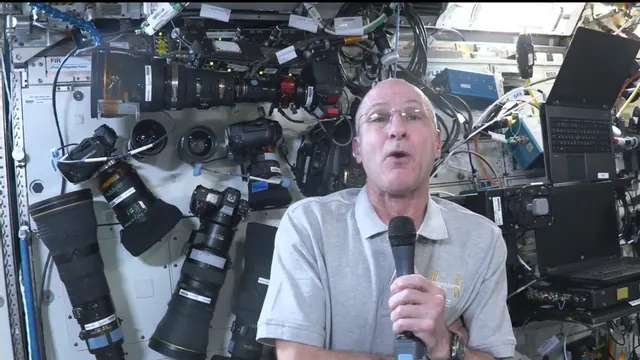
A 16:9 recording turned into a 9:16 clip loses about two thirds of its width. The only question that matters is which third survives, and Clyps answers it with tracking data rather than a fixed box in the middle of the frame.
Fast facts
- Face tracking runs on every new project, before you open the editor.
- Auto follow keeps the crop on the tracked speaker as they move through the clip.
- Split screen stacks two tracked speakers, one per half of a vertical frame.
- Center, Manual, Fit, and Fill are always available as fallbacks.
- Reframe into 9:16, 16:9, 1:1, or 4:5, previewed in the browser before render.
The underlying problem
What does reframing actually have to solve?
Reframing is a subtraction problem. A widescreen source has roughly three times the width of the vertical frame it has to fit into, so reframing is not resizing, it is deciding what to delete. Get it wrong and you publish a clip with half a face at the edge of frame, or a speaker who walks out of the shot halfway through their best sentence.
A static center crop is the naive answer and it works more often than people expect. It fails in exactly the situations that matter for social clips: an interview where the guest sits off-center, a presenter who moves while making a point, a two-shot where the person talking is on the left, or a recording framed with the subject deliberately off to one side.
Clyps handles this by running face tracking across the source as part of processing, before you ever open a clip. That produces subject data for the whole recording, which the framing modes then read from. The tracking is not something you queue afterward or pay attention to; it is part of what happens between the upload finishing and the project being ready.
Six modes
Which framing mode should you pick?
Four modes are always available and two appear when tracking supports them. Auto follow needs a tracked subject in the clip range, and Split screen needs two of them. If neither resolves, you still have Center, Manual, Fit, and Fill, so a clip is never stuck without a framing option.
| Mode | What it does | Best for | Availability |
|---|---|---|---|
| Auto follow | Follows the tracked speaker through the clip. | A moving presenter or an off-center guest. | When a tracked subject resolves |
| Split screen | Stacks two tracked speakers, one per half of the frame. | Interviews, debates, two-host shows. | When two speakers resolve |
| Center | Centers the source inside the canvas. | Locked shots with a centered subject. | Always |
| Manual | You drag the frame or nudge it with arrow keys. | Anything the automatic crop gets wrong. | Always |
| Fit | Fits the whole source frame inside the canvas. | Slides, screen shares, and demos you cannot crop. | Always |
| Fill | Fills the canvas and crops the overflow. | Simple vertical output from a stable shot. | Always |
The choice is per clip, not per project. One episode can produce a split-screen exchange, an auto-follow monologue, and a Fit-framed slide walkthrough, and none of those decisions constrain the others.
Tracked framing
How does auto-follow framing behave during a clip?
Auto follow moves the crop window with the tracked speaker for the duration of the clip rather than choosing one position and holding it. If the speaker leans forward, shifts in their chair, or walks across the frame while answering, the vertical crop travels with them and they stay in shot.
This is the difference that shows up most clearly on interview and presentation footage. A center crop on a guest seated to the left of a wide two-shot cuts them in half; Auto follow puts them in the middle of the vertical frame and keeps them there. The tracking data comes from the automatic pass, so the mode is ready the first time you open the clip.
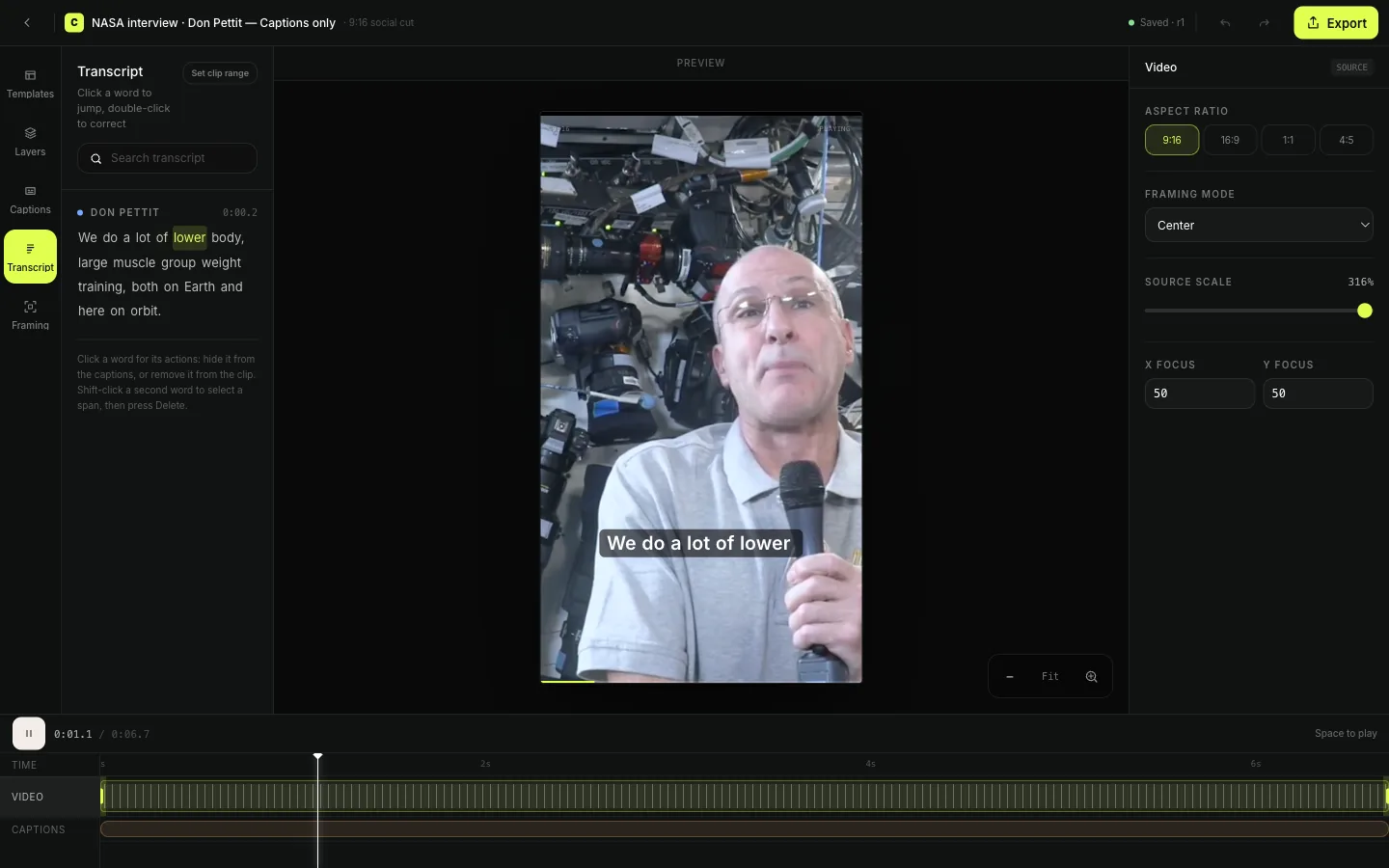
While Auto follow is driving the crop, the manual scale and focus controls step back, because the tracked position is what determines the frame. If you want that control returned, switching to Manual hands it back immediately, and nothing about the transcript, the captions, or the clip range changes when you do.
Two speakers
What does the two-speaker split screen do differently?
Split screen refuses the choice between two people. Instead of picking one speaker and cropping the other out, it builds a vertical composition with both of them stacked, one per half, from a single wide source. The reaction stays in the clip, which is usually the reason the moment was worth clipping.
It becomes available when tracking resolves two speakers who are both present across the clip range, which is the honest condition. A guest who appears for two seconds at the end of a passage does not qualify, and neither does a shot where one person is turned away from camera for most of the range. When it does qualify, a two-speaker clip typically opens in split screen because a stacked layout reads better than cutting back and forth inside a crop.
For a monologue passage inside the same conversation, Split screen is the wrong call and Auto follow is the right one. Half a frame spent on someone who is silently listening is half a frame wasted, so the mode-per-clip design matters more here than anywhere else in the product.
Override
Can you overrule the crop Clyps picked?
Always. Manual mode lets you drag the video directly on the canvas or move it with the arrow keys, one percent per press and five percent while holding Shift. Alongside dragging, Manual exposes source scale and horizontal and vertical focus, so you can push in on a subject or bias the frame toward one side.
Fit and Fill are the other two escape hatches, and they solve opposite problems. Fit keeps the entire source frame visible inside the vertical canvas, which is what you want when a slide, a chart, or a screen share carries the information. Fill does the reverse, filling the canvas edge to edge and cropping whatever overflows.
Every framing change previews in the browser. You are not queueing a render to find out what a crop looks like, which means trying four modes on the same clip costs seconds rather than four exports. The framing decision, like the transcript and the caption template, stays editable right up until you start the export.
Output
Which aspect ratio should the finished clip use?
Pick the ratio for the destination, not for the source. Clyps supports 9:16, 4:5, 1:1, and 16:9, set per clip in both the editor and the export dialog, so a single reframed moment can be published in more than one shape.
| Ratio | Crop severity from 16:9 | Where it goes |
|---|---|---|
| 9:16 | Heaviest. Roughly two thirds of the width is discarded. | TikTok, Instagram Reels, YouTube Shorts |
| 4:5 | Heavy, but less punishing than full vertical. | Instagram and Facebook in-feed video |
| 1:1 | Moderate. Keeps more of the horizontal context. | LinkedIn and Instagram feed placements |
| 16:9 | None. The source shape is preserved. | YouTube, LinkedIn posts, embeds, review copies |
The heavier the crop, the more the framing mode matters. At 16:9 the mode is close to irrelevant; at 9:16 it is the single decision that determines whether the clip is watchable, which is why the tracked modes exist at all.
Honest limits
When Clyps is the wrong tool for reframing
Tracked framing is powerful inside one source file and useless outside it. These are the cases where you should reach for something else.
Multicam live-switching edits
Clyps reframes within a single recording. Cutting between separately captured camera angles is an NLE job, and no amount of tracking substitutes for it.
Footage with no visible faces
Auto follow and Split screen depend on tracked subjects. Screen recordings, animation, and product footage without people fall back to Center, Manual, Fit, or Fill.
Keyframed camera moves
There is no keyframe editor for the crop path. You get a tracked follow or a manual placement, not a hand-authored push-in over time.
Source pulled from a YouTube link
URL import is built but currently disabled. Reframing starts from an uploaded MP4, MOV, M4V, or WebM file.
Deliverables above 1080p
Cloud render tops out at 1080p, so a reframed 4K master is not something Clyps produces today.
Three or more people on screen
Split screen is a two-speaker layout. A panel of four does not become a four-way grid, and you will be choosing between Auto follow and a manual crop.
Questions
Questions about reframing footage
- Does reframing run automatically or do I trigger it?
- Face tracking runs automatically on every new project, so the subject data is ready before you open the editor. Choosing which framing mode uses that data is yours: a clip opens on a sensible default and you can switch modes at any point before export.
- What happens if tracking does not find a speaker?
- The tracked modes simply do not appear. Auto follow is offered only when a tracked crop resolved for the clip, and Split screen is offered only when two speakers resolved. Center, Manual, Fit, and Fill are always available, so there is always a working framing option.
- Can I move the crop by hand?
- Yes. Manual mode lets you drag the video on the canvas or nudge it with arrow keys, one percent per press and five percent with Shift held. Manual also exposes source scale and X and Y focus, which the tracked modes take over while they are driving the crop.
- Which aspect ratios can I reframe into?
- Clyps outputs 9:16, 16:9, 1:1, and 4:5. Vertical 9:16 suits TikTok, Instagram Reels, and YouTube Shorts, 4:5 and 1:1 suit feed placements on Instagram and LinkedIn, and 16:9 keeps the original landscape shape.
- Do I have to render to see what the crop looks like?
- No. Framing changes preview in the browser inside the Clyps studio editor. You only spend a cloud render when you are satisfied, and that render produces an H.264 MP4 at 720p or 1080p.
A vertical clip is only as good as what stayed in the frame.
Upload a recording and see what tracked framing does with a wide shot before you spend a render.
Create your Clyps account