Use case
MP4, MOV, M4V, WebM up to 20 GB. Word-timed transcript, scored highlight candidates, 9:16 / 16:9 / 1:1 / 4:5 output, MP4 export at 720p or 1080p.
Long video to shorts: one upload, many vertical clips
Clyps reads a full recording, marks the passages that hold up on their own, reframes them for a vertical screen, times captions to individual words, and hands the whole thing to you as an editable project instead of a finished file you cannot change.
Fast facts
- Upload MP4, MOV, M4V, or WebM files up to 20 GB, resumable with retry and cancel.
- Transcription returns word-level timing, so captions and trims land on syllables.
- Highlight analysis proposes candidate clips with a title, a score, and a written reason.
- Face tracking runs on every new project, which unlocks auto-follow framing and split screen.
- Export to MP4 at 720p or 1080p in 9:16, 16:9, 1:1, or 4:5.
Highlight analysis
How does Clyps decide which passages become clips?
Clyps works from what was said. Transcription runs first and returns the words with individual timings attached, and highlight analysis then reads that transcript looking for passages that survive being pulled out of context. Each candidate comes back with a title, a score, and a written reason, so you are reading an argument for the clip rather than staring at an unexplained number.
That reason matters more than the score. A three-hour recording might produce a dozen candidates, and the fastest way to triage them is to read why each one was flagged: a complete answer to a question, a self-contained story, a claim followed by its evidence, a moment where someone changes their mind. You keep the ones whose reason matches what you actually want to publish and dismiss the rest without opening them.
Because the analysis is anchored to the transcript rather than to motion or loudness, the candidate ranges land on sentence boundaries instead of mid-word. When you open one in the studio editor, the starting point is usually close enough that the remaining work is a nudge at each end rather than a search through the timeline.
The path from source to clip
What happens between the upload and a finished vertical clip?
Five stages, and you only need to be present for the last two. Upload and processing run without you, the studio editor is where you make decisions, and the export is a cloud render you can walk away from.
| Stage | What Clyps does | What you do |
|---|---|---|
| Upload | Streams the file straight to storage with resumable chunks, retry, and cancel. | Pick the recording you have the rights to use. |
| Transcribe | Produces a transcript with word-level timing. | Nothing. This runs automatically. |
| Analyze | Proposes candidate clips with a title, score, and written reason. | Nothing. This runs automatically. |
| Track | Runs face tracking across the source so framing modes have subject data. | Nothing. This runs on every new project. |
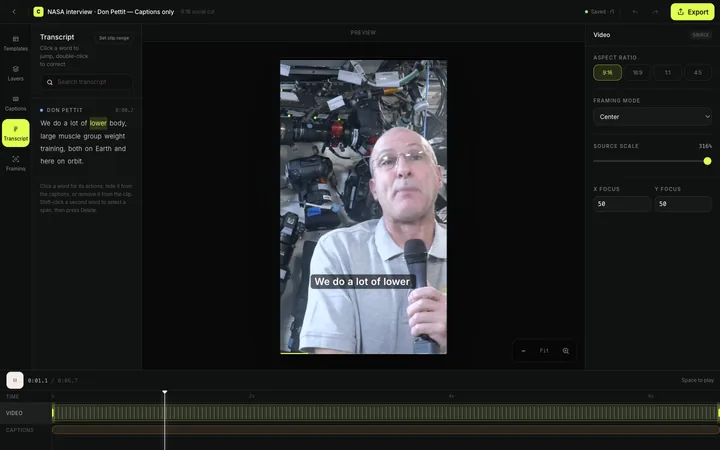
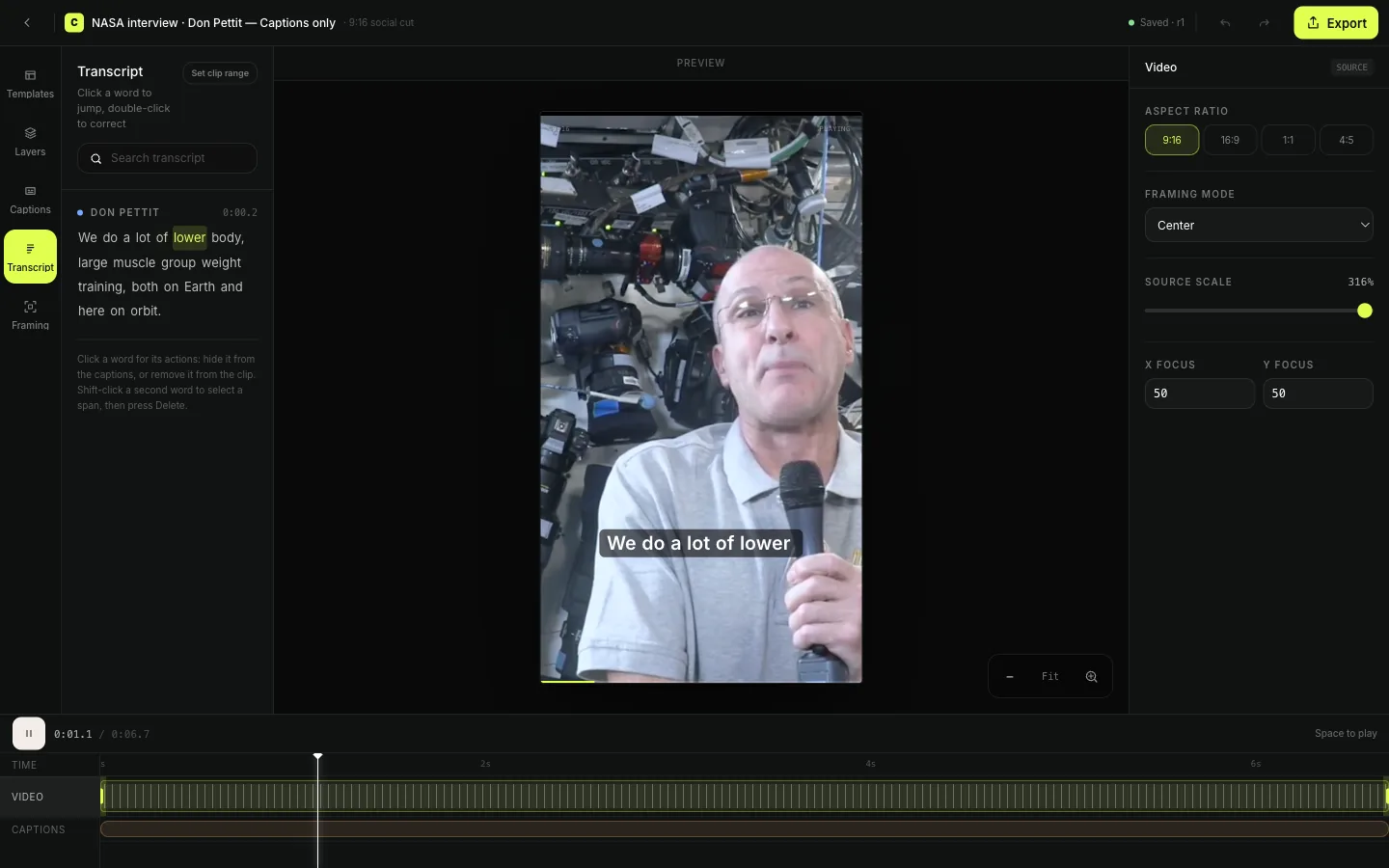
| Edit | Renders an in-browser preview of every framing, caption, and transcript change. | Trim the range, choose framing, pick a caption template, fix words. |
| Export | Renders MP4 in the cloud at 720p or 1080p and keeps progress across reloads. | Choose the aspect ratio and resolution, then leave the tab. |
The order matters for one practical reason. Tracking happens before you open the editor, so auto-follow framing and split screen are ready the first time you look at a clip rather than being a second job you queue afterward.
Output shapes
Which aspect ratio belongs on which platform?
Vertical 9:16 covers TikTok, Instagram Reels, and YouTube Shorts. Square 1:1 and tall 4:5 are feed shapes, and 16:9 stays useful for landscape placements such as a LinkedIn post or a YouTube upload that is not a Short. Clyps sets the ratio per clip, so one source recording can produce differently shaped versions of the same moment.
| Ratio | Shape | Typical destination |
|---|---|---|
| 9:16 | Full-screen vertical | TikTok, Instagram Reels, YouTube Shorts |
| 4:5 | Tall feed post | Instagram and Facebook in-feed video |
| 1:1 | Square | LinkedIn and Instagram feed placements |
| 16:9 | Landscape | YouTube, LinkedIn, embeds, and internal review copies |
Reshaping a 16:9 recording into 9:16 throws away most of the frame, so the decision that matters is which part of the frame survives. That is what the framing modes are for, and it is the part of the process Clyps refuses to guess at silently.
Editable by default
Do you still control the edit after the analysis runs?
Every decision stays editable until you export. The proposed range, the framing mode, the caption template, the caption styling, and the transcript itself are all live in the Clyps studio editor, and none of them are baked until the render starts.
Transcript editing is per word. You can correct a word the transcriber misheard, hide a word you do not want on screen, and jump the playhead to a word to check how it reads in context. Because the caption timing is attached to the transcript, a correction changes the text without knocking the timing loose.
Framing is a choice rather than a default. Center, Manual, Fit, and Fill are always available, and when tracking finds speakers you also get a tracked Auto follow mode and a two-speaker Split screen layout. Captions carry the same idea: twenty-four templates across seven groups, plus direct control over font size, caption width, colors, background, and position.
The practical result is that a clip you disagree with costs you a minute rather than a re-upload. Drag the in point earlier to catch the question that prompted the answer, switch from Center to Auto follow when the speaker moves, hide a filler word, and the browser preview reflects it before you spend a render.
Inputs and limits
What files can you bring, and how large can they be?
Clyps accepts MP4, MOV, M4V, and WebM files up to 20 GB each. The upload goes directly to storage rather than through an intermediate server, and it is resumable, so a dropped connection resumes instead of restarting. You can also retry a failing chunk or cancel the whole upload without leaving a half-written file behind.
A 20 GB ceiling is generous enough for long-form source material at high bitrates. A full-length podcast recording, a recorded webinar, a conference talk captured at high quality, or a multi-hour stream export all fit comfortably, which means you rarely have to pre-compress a source before Clyps can look at it.
One input path is not open yet. YouTube-link import is built but currently disabled, so today the way into Clyps is a file upload. Export the recording from wherever it lives and upload it, and the rest of the pipeline is identical.
Honest limits
When Clyps is the wrong tool for a long recording
Some recordings are a poor fit, and it is cheaper to know that before you spend an upload on them. These are the honest cases.
Multicam live-switching edits
Clyps works from one source file and reframes within it. A production that needs cuts between separately recorded camera angles belongs in a traditional NLE.
Recordings with little or no speech
Highlight analysis reads the transcript. A music performance, a silent screen capture, or ambient footage gives it nothing to score, so no candidate clips come back.
YouTube link as the input
URL import is built but currently disabled. Until it is enabled, you need the file itself, so pull the download from the platform or your recording tool first.
Clips that need stock B-roll
There is no stock footage library in Clyps today. If the edit depends on cutaway footage you do not already have, you will be sourcing it elsewhere.
Deliverables above 1080p
Cloud render tops out at 1080p. That is fine for TikTok, Reels, Shorts, and LinkedIn, and wrong for a 4K master.
Fully unattended batch output
Clyps is built around review. The candidates are proposals, and the product assumes a person opens the studio editor before anything gets published.
Questions
Questions about repurposing a long recording
- How long can the source recording be?
- Clyps accepts MP4, MOV, M4V, and WebM files up to 20 GB, so a multi-hour interview, stream recording, or conference session fits in a single upload. The upload runs directly to storage, is resumable, and can be retried or cancelled without starting the file over.
- Does Clyps pick the clips or do I?
- Clyps proposes. Highlight analysis reads the transcript and returns candidate clips, each with a title, a score, and a written reason explaining why that passage stands on its own. You open the ones you like, adjust the start and end points, and discard the rest.
- Can I change the start and end of a suggested clip?
- Yes. Every proposed range is an editable starting point in the Clyps studio editor, not a locked render. Trim it tighter, extend it to include the setup line, correct the transcript, restyle the captions, or change the framing mode, and the preview updates before you spend a render.
- What aspect ratios can I export?
- Clyps exports 9:16 for TikTok, Instagram Reels, and YouTube Shorts, 16:9 for landscape placements, 1:1 for square feeds, and 4:5 for tall feed posts. You pick the ratio per clip, so one source recording can produce clips shaped for several destinations.
- What resolution do the exported files use?
- Clyps renders in the cloud to MP4 at 720p or 1080p. Render progress is tied to the project rather than the browser tab, so you can reload the page or come back later and the export keeps going.
The clip is already inside the recording you have.
Upload the file, read the reasons Clyps gives for each candidate, and keep the ones worth publishing.
Create your Clyps account