Use case

Upload an episode up to 20 GB. Word-timed transcript, scored candidate moments, tracked Auto follow or two-speaker Split screen, 24 caption templates, MP4 at 720p or 1080p.

A podcast clip generator that keeps both speakers in frame

A recorded conversation is the hardest thing to reshape for a vertical screen, because the interesting part is usually two people reacting to each other and the frame only has room for one. Clyps solves that with tracking, a split-screen layout, and captions timed to individual words.

Fast facts

  • Accepts MP4, MOV, M4V, and WebM episode recordings up to 20 GB.
  • Highlight analysis returns candidate moments with a title, a score, and a written reason.
  • Face tracking runs automatically, enabling Auto follow and two-speaker Split screen.
  • Twenty-four caption templates in seven groups, all word-timed.
  • Export MP4 at 720p or 1080p in 9:16, 4:5, 1:1, or 16:9.

The workflow

How does a recorded conversation become a set of short clips?

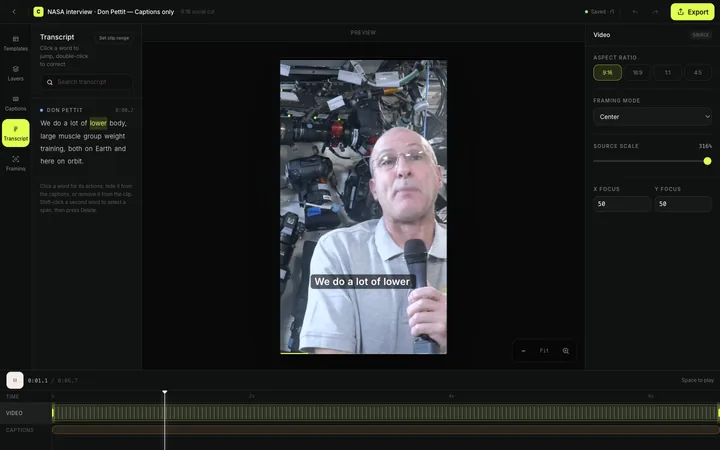
You upload the episode once and Clyps does three passes over it before you touch anything: it transcribes the audio with word-level timing, it reads that transcript for passages worth pulling out, and it runs face tracking across the frames so the framing tools have subject data to work with. Then you open the studio editor and make the calls.

Where the work actually happens
StepWho does itWhat you have afterward
Upload the episodeYou, onceA resumable direct-to-storage upload with retry and cancel.
TranscribeClyps, automaticallyA transcript with timing attached to each individual word.
Find the momentsClyps, automaticallyCandidate clips carrying a title, a score, and a written reason.
Track the speakersClyps, automaticallySubject data that unlocks Auto follow and Split screen.
Choose and shapeYou, in the studio editorTrimmed ranges, chosen framing, a caption template, corrected words.
ExportClyps, in the cloudMP4 at 720p or 1080p, with progress that survives a reload.

The three automatic passes are the reason a long episode does not turn into an evening of scrubbing. You are reviewing a shortlist with reasons attached rather than hunting through two hours of conversation for the part where the guest said the good thing.

Framing a conversation

What happens when two people are on the recording?

Clyps offers a two-speaker Split screen layout whenever tracking resolves two speakers across the clip range. It stacks both people inside a single vertical frame, one per half, so a reaction, an interruption, or a disagreement stays readable instead of being cropped out of the shot.

The alternative is tracked Auto follow, which keeps the crop on the active subject and moves with them rather than holding a fixed box in the middle of the frame. Auto follow suits a monologue answer, a single-speaker segment, or a recording where one person is clearly carrying the passage. Split screen suits the back-and-forth.

Neither mode is forced on you. Center, Manual, Fit, and Fill are always available, so if the tracked crop disagrees with your judgment you can take the frame back by hand and place it exactly where you want it. The framing choice is per clip, which means the same episode can produce a split-screen debate clip and an auto-follow monologue clip without any conflict.

Readability

Why do captions matter more for conversation clips than for anything else?

Conversation clips are watched with the sound off more often than they are watched with sound, and dialogue is harder to follow silently than a scripted monologue is. Word-level caption timing is what makes a fast exchange legible, because the text lands with the syllable instead of arriving as a block after the point has already been made.

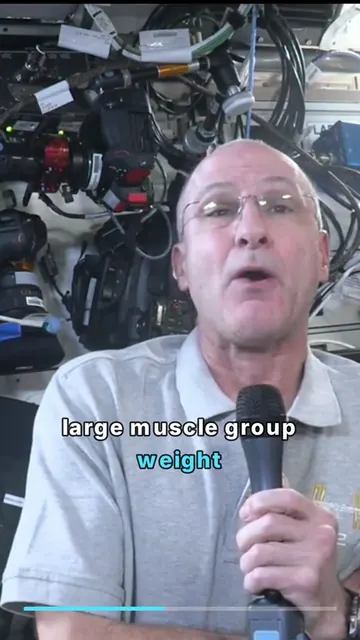
Clyps ships twenty-four caption templates grouped into Essential, Social, Spoken, Editorial, Layout, Business, and Brand. The groups are a starting shortlist rather than a taxonomy to study: Spoken treatments emphasize each word as it is said, Editorial treatments read as typography, Layout treatments change where the text sits in the frame, and Business and Brand treatments are the restrained end of the range.

Whichever template you start from, the styling controls stay open. Font size, caption width, colors, background, and position are direct controls in the studio editor, so a template is a preset rather than a cage. Changing the look does not disturb the timing, because the timing belongs to the transcript.

Names and jargon

Can you fix the words a transcriber gets wrong?

Yes, and this is the part that decides whether podcast clips are publishable. Guest names, company names, product names, and field jargon are exactly the words automatic transcription gets wrong, and they are also the words most likely to be burned into the middle of a caption where everyone can see the mistake.

Clyps handles it at the word level. You can correct a word in place, hide a word so it never renders, and jump the playhead to a word to confirm what was actually said. Corrections propagate into the captions without breaking the word timing that the caption templates depend on.

Hiding is worth calling out separately. Filler words, a stumble at the start of a sentence, or a half-finished thought can be removed from the on-screen text without cutting the audio, which keeps a clip reading cleanly while the speech stays natural.

Setup reality

What if the episode was filmed on one static camera?

A single wide shot of two people is the most common podcast setup and it works well here. Tracking finds the faces in that wide frame, and Split screen builds a vertical composition out of two crops of the same shot, which is why you do not need separate camera files to end up with a vertical clip that shows both people.

If the recording is one person to camera, Auto follow is usually the better choice, and it earns its keep whenever the speaker gestures, leans, or drifts out of the center of the original frame. For a locked shot where nobody moves, plain Center framing is often enough and costs nothing to try, since you can preview all of these in the browser before rendering.

Screen-share segments are the case to think about. If a stretch of the episode is mostly a shared slide or demo, cropping to 9:16 will cut into it, and Fit is the mode that keeps the whole frame visible at the cost of letterboxing. Choosing between Fit and a tighter crop is a judgment call the editor leaves to you.

Honest limits

When Clyps is the wrong tool for a podcast

Clyps is built for one recorded source that contains speech. These are the podcast setups where something else will serve you better.

  • Audio-only episodes

    There is no waveform or static-image clip generator here. Clyps takes video files, and the framing features assume a picture exists.

  • Multicam live-switching edits

    If your show is cut between separate camera files, that assembly belongs in an NLE. Clyps reframes within a single source rather than switching between angles.

  • Episodes you want pulled from a YouTube link

    URL import is built but currently disabled. Upload the episode file itself and the rest of the pipeline is unchanged.

  • Clips that need B-roll over the talking

    Clyps has no stock footage library. Cutaways, illustrative shots, and archive inserts are not part of the product today.

  • Masters above 1080p

    Cloud export renders MP4 at 720p or 1080p. That covers TikTok, Instagram Reels, YouTube Shorts, and LinkedIn, and it does not cover a 4K deliverable.

  • Hands-off publishing

    Candidate clips are proposals with reasons attached, not scheduled posts. Clyps assumes a person reviews the shortlist before anything goes out.

Questions

Questions about clipping an episode

Does Clyps need a video recording, or will an audio file work?
Clyps works from video. The accepted inputs are MP4, MOV, M4V, and WebM files up to 20 GB, and the framing features depend on there being a picture to frame. If you record audio only, you would need to produce a video version before uploading.
How does Clyps handle a two-person conversation?
Face tracking runs on every new project. When tracking finds two speakers, the studio editor offers a Split screen layout that stacks both people in one vertical frame, along with a tracked Auto follow mode that keeps a single active speaker centered as they move.
Can I fix guest names and jargon in the captions?
Yes. Transcript editing in Clyps is per word. You can correct a misheard word, hide a word you do not want burned into the clip, and jump the playhead to any word to hear it in context. Caption timing stays attached to the transcript, so a correction does not knock the timing loose.
Which caption look should a conversation clip use?
Clyps ships twenty-four caption templates across seven groups: Essential, Social, Spoken, Editorial, Layout, Business, and Brand. Spoken treatments suit dialogue because they emphasize words as they are said, and every template can be adjusted for font size, width, colors, background, and position.
What do the exported clips look like?
Cloud render produces an H.264 MP4 at 720p or 1080p, at 24, 30, or 60 frames per second, in whichever ratio you chose: 9:16, 16:9, 1:1, or 4:5. Render progress survives a page reload, so you can queue an export and come back to it.

Your best episode moment deserves more than a link in the show notes.

Upload the recording, read the reason behind each candidate, and shape the ones worth publishing.

Create your Clyps account