
Prepare an intelligible recording
Clear speech makes review easier. Use the original video recording when possible and listen for long stretches of overlapping voices. Split a very long episode into manageable source files before upload. Keep a note of guest names, brand names, and specialist terms that the transcript may need help with.
Correct meaning before styling
Review quoted claims, numbers, and the guest’s name against the audio. Do not turn a hesitant answer into a stronger claim by changing the caption text. When speakers interrupt one another, preview the moment carefully and choose a cleaner passage if the exchange becomes hard to follow.
Turn the transcript into clip decisions
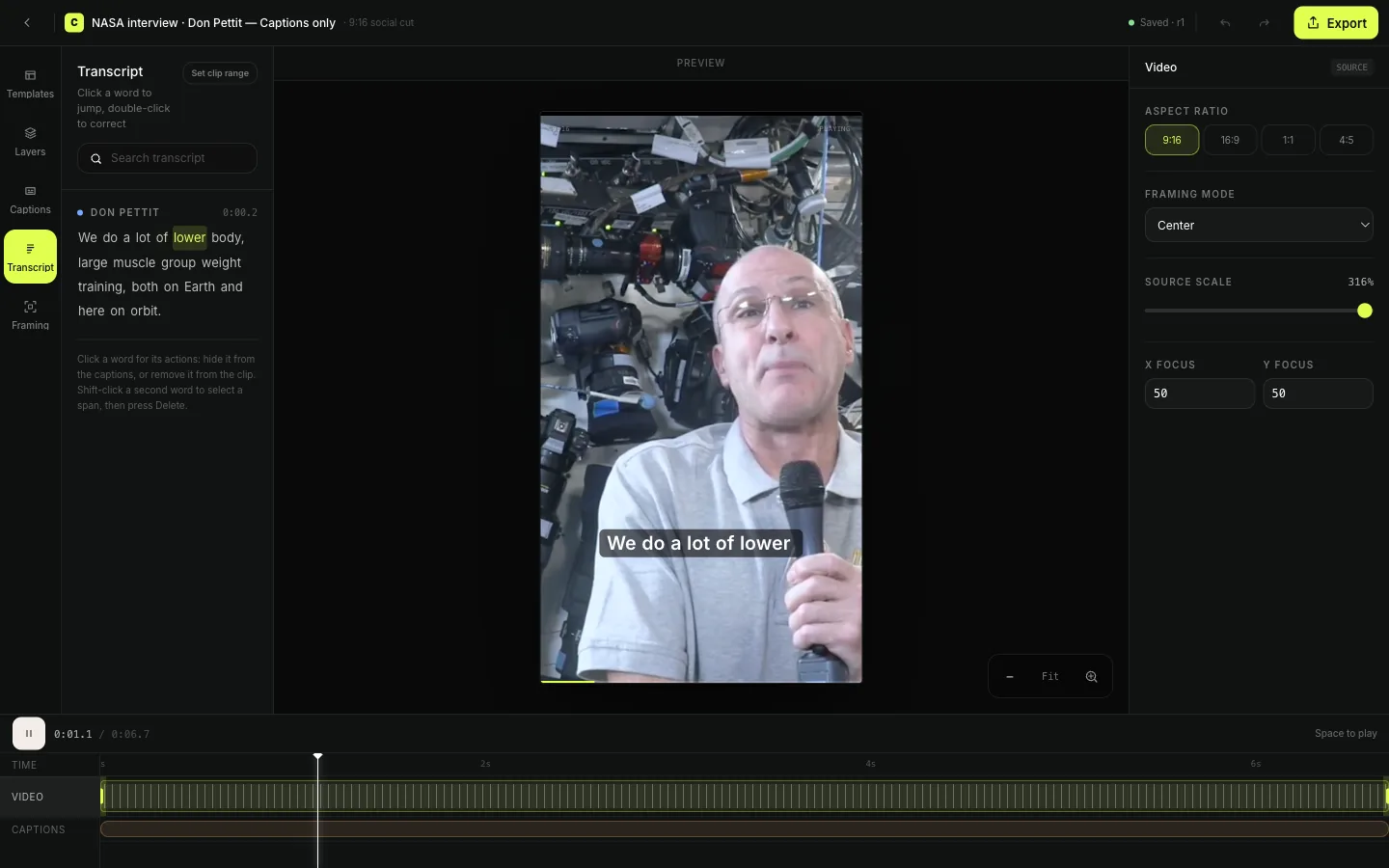
Look for complete answers and stories rather than isolated striking sentences. Clyps suggests ranges with a written reason; use the transcript to judge whether each one includes enough context. Once selected, review the captions on the actual video and export the excerpt.
Worked example: reviewing a guest’s specialist vocabulary
A video podcast guest describes a technical process and names an unfamiliar company. Keep a short reference list of the official spellings while reviewing the transcript. Listen to the relevant answer and correct the terms that will appear in captions. If the host interrupts midway through a word, inspect whether the passage remains understandable as a clip; a different answer may be a better choice. Select the range that includes the guest’s example, then review the text over the video. The transcript helps locate and proof the material, while the audio and picture remain the final reference for what the guest actually communicated.
Do not turn a transcription pass into an unmarked rewrite
Cleaning up an error is different from changing a speaker’s argument. Avoid adding certainty, removing an important hesitation, or replacing terminology with a stronger claim. If a quotation needs explanation for viewers, provide that context in the publishing copy rather than making the captions say something the guest never said.
Before you export
- Guest and organization names use verified spellings.
- Overlapping speech is checked against the audio.
- Caption corrections preserve the speaker’s claim.
- The selected answer remains understandable outside the episode.
See the edit before you export
Podcast transcription questions
- Is this for audio-only podcast files?
- This page describes the video-upload workflow. Bring the video recording of your podcast; it does not promise an MP3-only transcription service.
- Can I download a standalone transcript file?
- This workflow uses timed text inside Clyps for review and captions. A separate transcript or subtitle-file export is not promised here.