
Choose the ratio before the resolution
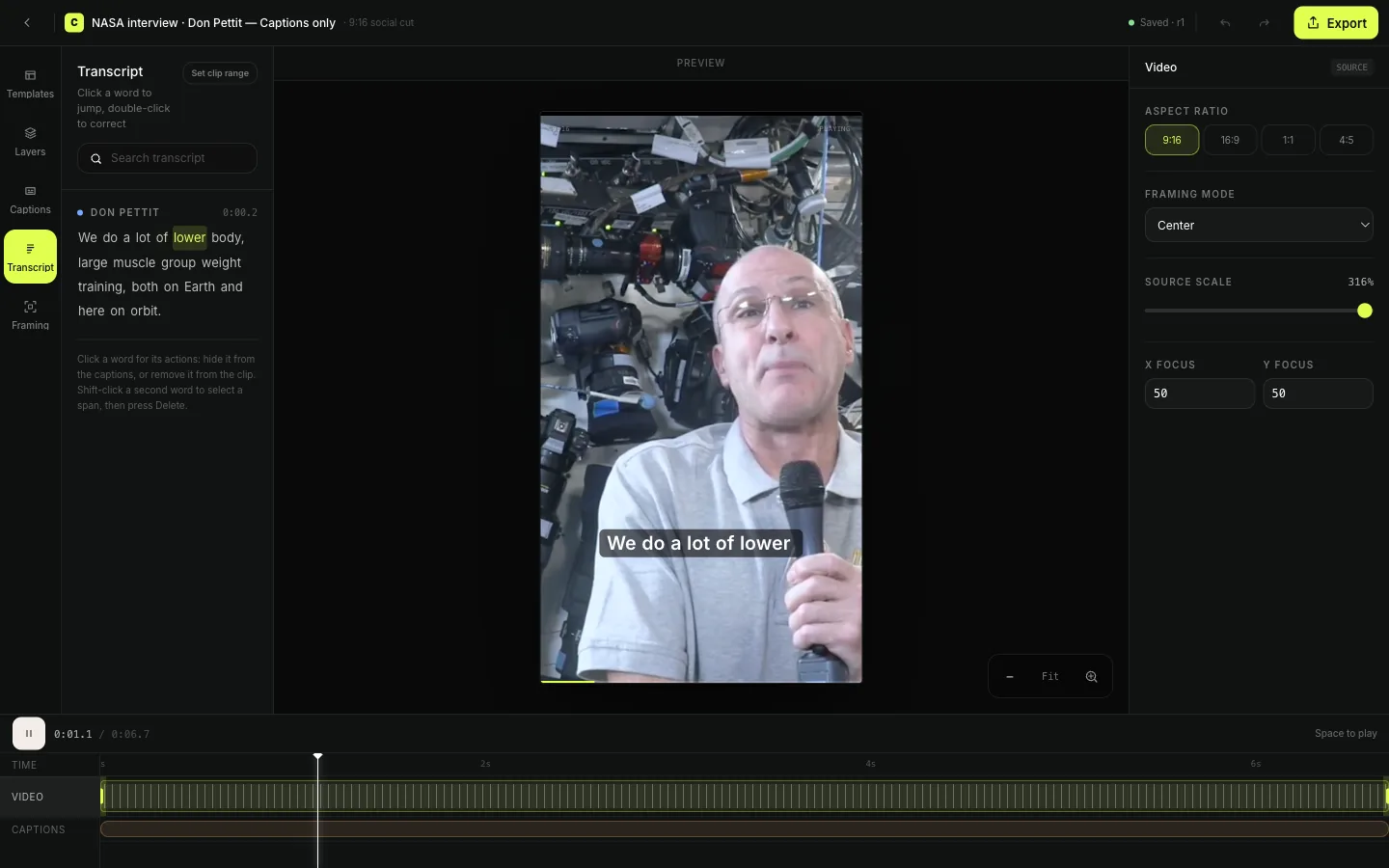
The aspect ratio describes the shape: 9:16 is vertical, 16:9 is landscape, 1:1 is square, and 4:5 is a tall feed format. Resolution describes the output’s pixel dimensions. Decide the placement first, then select the export resolution that suits the source and delivery requirements.
Recheck the composition for every shape
A square version of a vertical clip can reveal or remove different parts of the source. Review the speaker’s position, visible text, and caption line breaks after changing the ratio. A layout should look intentional in its destination, rather than simply fitting inside the upload box.
Export a version for each placement
Use the same source passage when the message fits more than one channel, but review each output separately. Keep file names clear enough to distinguish the vertical and feed versions. Upload a test preview to the destination before distributing the clip widely.
Worked example: one excerpt for a Reel and a feed post
A customer answer may be useful as a vertical Reel and a square feed video. Begin with the same selected passage, then review the composition in each shape. The vertical version may need a tighter speaker crop, while the square version can preserve more of the room. Recheck caption wrapping after changing the ratio; a line that fit one frame may become crowded in another. Export each version with a clear destination in the file name and preview the correct file in the receiving platform. This keeps the message consistent while letting the picture and text fit their actual placements.
Why a larger export can still look soft
Output dimensions do not establish source quality. A low-resolution recording, heavy compression, or tight crop can limit the visible detail even in a 4K export. Inspect the source before spending time on formatting. If the important detail is already unreadable, a different recording or composition will help more than selecting a larger export setting.
Before you export
- The ratio matches the planned placement.
- Each version has its own framing and caption review.
- File names distinguish the exported shapes.
- The destination preview uses the intended file.
See the edit before you export
Video resizer questions
- Which aspect ratios does Clyps offer?
- The clip editor supports 9:16, 16:9, 1:1, and 4:5. Choose the ratio per clip and inspect the resulting frame.
- Does resizing create more detail?
- No. Exporting a larger file cannot recover detail missing from the original recording, especially after a tight crop.