
Make the recording useful after the event
Export a video file from Zoom, Teams, or your webinar platform, then upload it to Clyps. Open a suggested moment, adjust its start and end, and correct the product terms in captions. Choose a frame that leaves the screen readable and download an MP4. Clyps does not connect to your webinar account or fetch a recording link.
Plan the session and the finished clips
A 25-minute webinar fits within the Free source allowance. Three one-minute exports use three finished minutes and all three Free exports. Allow for other recordings and exports already made that month. Clyps Free includes 30 source minutes, 10 finished minutes, and three exports per month. Free exports have a Clyps watermark and free media expires after seven days. Creator starts at $19 monthly with 300 source minutes, 120 finished minutes, and 60 exports. Paid plans remove the Clyps watermark.
Begin with the audience questions
Q&A often contains the clearest statements of what viewers need. Keep the question when the answer depends on it, or extend the excerpt until the subject is obvious. Remove housekeeping and scheduling details that were useful live but do not help someone watching later.
Watch for missing slide context
If a presenter says “the second column,” a cropped face alone will not explain the point. Keep the relevant visual context or choose a passage that stands on speech. A vertical format is useful only when the information remains readable after the crop.
Give each excerpt a useful next step
An answer about implementation can point viewers toward a setup resource, while a high-level explanation can introduce the full session. Export the selected clip and add that next step in your publishing workflow. Avoid using a general promotional call to action on every excerpt regardless of its topic.
Worked example: a Q&A answer with a useful screen example
A webinar attendee asks how to correct an import error. The presenter repeats the question, shows the relevant field, and explains the result. Start where the question becomes clear, keep the screen action and explanation together, and remove the later transition to the next attendee. Check that the field remains readable in your chosen frame. If a vertical crop cannot preserve it, export a wider composition. Proof the field name in the captions so the excerpt remains useful to someone following along. This produces a focused support or educational clip from a session originally designed for a live audience.
Watch for information that expired after the event
A registration deadline, temporary offer, or statement about what will happen “tomorrow” can become misleading in a later clip. Choose a more durable passage or provide the necessary date in your publishing context. Do not use caption edits to quietly replace what the presenter actually said with a current claim.
Before you export
- The question or problem is understandable without the live chat.
- Any relevant screen detail remains readable.
- Dates and event-specific statements are reviewed.
- The exported excerpt has an appropriate next step.
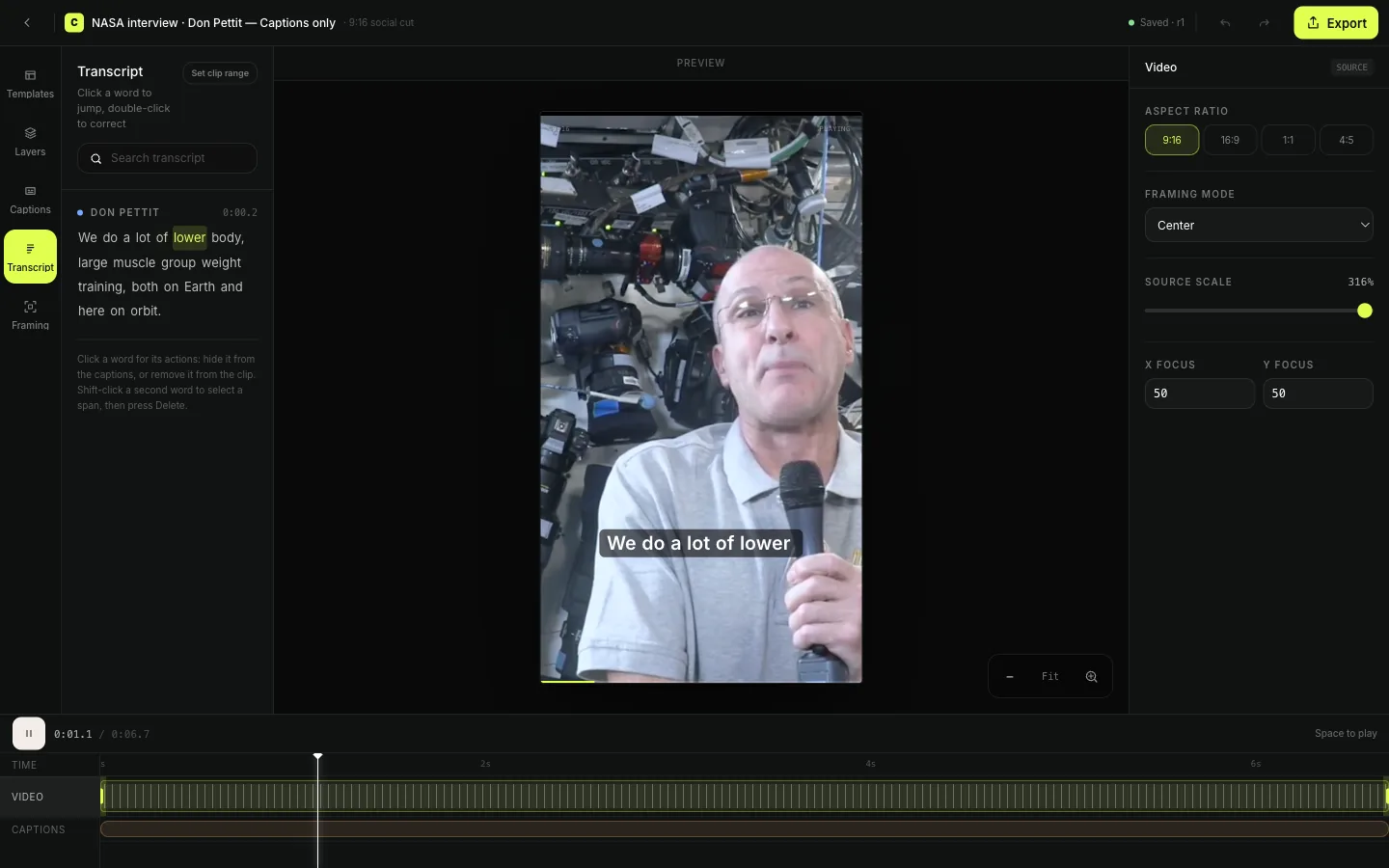
See the edit before you export
Webinar clip maker questions
- Can I turn a Zoom webinar into clips?
- Yes. Download its video recording and upload MP4, MOV, M4V, or WebM to Clyps. Keep recordings around 40 minutes or shorter for reliable transcription and within your plan allowance. Keep the upload page open until it finishes.
- Can I try a webinar clip maker for free?
- Clyps Free includes 30 source minutes, 10 finished minutes, and three exports per month. Free exports have a Clyps watermark and free media expires after seven days. Creator starts at $19 monthly with 300 source minutes, 120 finished minutes, and 60 exports. Paid plans remove the Clyps watermark.
- Can I upload a recording from a webinar platform?
- Use a video recording exported from your webinar platform and upload the file to Clyps.
- Will Clyps read all of my slides?
- The transcript comes from speech. Review visuals yourself when the explanation depends on slide text, charts, or a screen demonstration.